

Appearance
Dashboard
The dashboard is what you land on after signing in. It's the home base for the workspace: connection status, setup progress, and the way into everything else.
📸 Screenshot
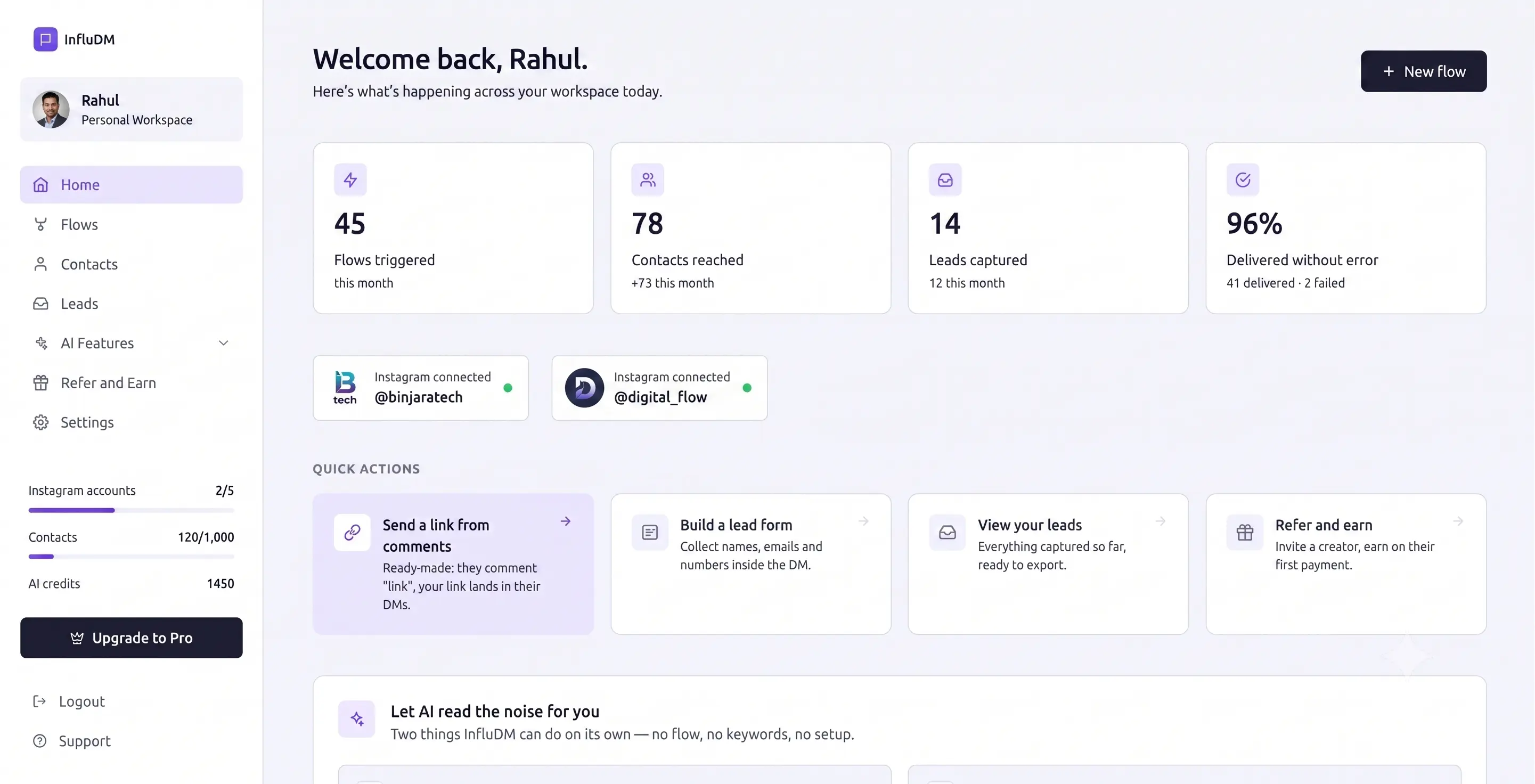 The dashboard — this month's flow and contact figures across the top, connected Instagram accounts below them, and the quick actions underneath.
The sidebar
The left sidebar is present on every screen.
| Item | What's there |
|---|---|
| Home | This dashboard. |
| Flows | Your automations, per Instagram account. See Flows. |
| Contacts | Everyone who has interacted with a flow. See Contacts. |
| Leads | Lead-form submissions. See Leads. |
| Refer and Earn | Your invite link, earnings and payouts. See Refer & Earn. |
| Settings | Profile, Instagram accounts, lead forms, workspace and billing. |
Underneath the navigation you'll find:
- Usage meters — Instagram accounts used against your allowance, and contacts used against your allowance. An unlimited quota shows no limit.
- Upgrade — shown while you're on the free plan.
At the top of the sidebar is your name and the workspace name. On mobile the whole sidebar collapses behind the hamburger menu in the top bar.
Account switcher
When more than one Instagram account is connected, a switcher appears in the header. It decides which account's flows you see and which account a new flow is created against. See Instagram Accounts.
Instagram connection status
- Not connected — a banner invites you to connect an Instagram Business or Creator account. Nothing can be automated until you do.
- Connected — a badge shows the account's avatar and handle with a green dot.
If a connection attempt failed, a notice at the very top explains why, with a link to the plans page when the reason was your account allowance.
Get started checklist
A three-step progress card:
- Connect Instagram — ticks itself once an account is linked.
- Create your first flow — takes you to the flows list.
- Send auto DM — watch a flow trigger and respond.
It's a setup guide, not a report; use it to find the next thing to do.
Metrics
For the numbers that matter day to day, use:
- Contacts for how many people your flows have reached (Contacts).
- Leads for how many completed a lead form (Leads).
- The usage meters in the sidebar for what you've consumed against your plan.
New flow
The New flow button in the header jumps straight to the flows list, where Create flow opens the builder. See Flows.