

Appearance
AI Features
Your Instagram account receives more than you can read. Somewhere in the DMs is a brand offering you money. Somewhere in the comments is a scam link under your best reel. Both are sitting in the same pile as a hundred fire emojis.
InfluDM's AI features read that pile for you and act on it. There's a walkthrough of what they do, with examples, on the AI features page — this guide is the how-to.
| Feature | Reads | Does | Guide |
|---|---|---|---|
| Collab Detection | Your incoming DMs | Finds brands offering collaborations and files them in Brand Collabs | Read more |
| Comment Moderation | Your incoming comments | Sorts each one and deletes the kinds you choose | Read more |
Both are switched off until you turn them on, both run on prepaid AI credits, and each works perfectly well without the other.
📸 Screenshot
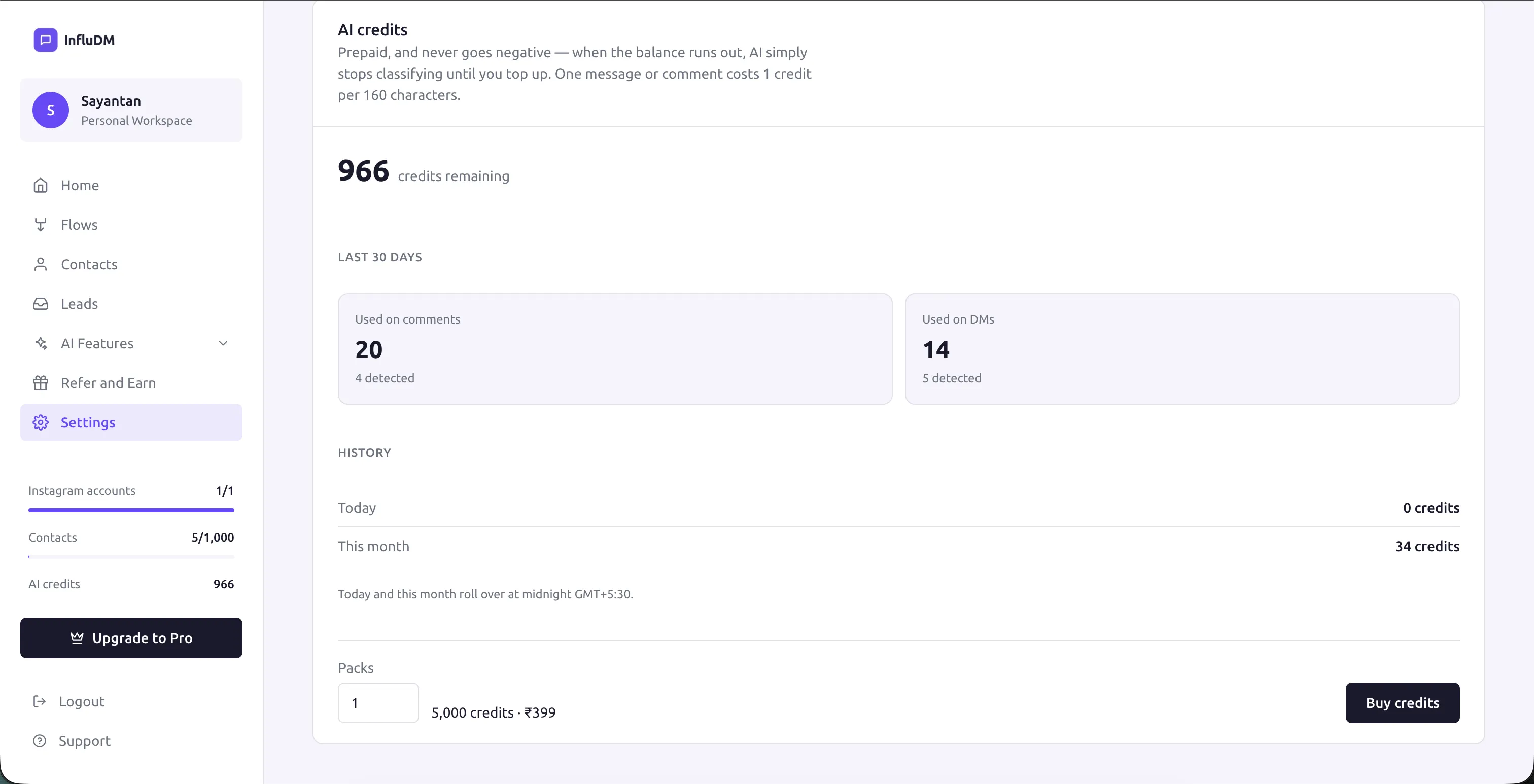 The top of Settings → AI features — the credit balance both features run on, with the usage breakdown and credit packs below it.
Turning them on
- Go to Settings → AI features.
- Check your credit balance. Every new workspace starts with credits included, so you can try both features properly before spending anything.
- Switch on the feature you want.
- Leave All accounts selected, or pick which Instagram accounts it covers.
- For Comment Moderation, confirm which kinds of comment should be deleted.
That's the whole setup. Both features start working on messages and comments that arrive after you switch them on — they don't go back through your history, so turning a feature on today won't suddenly delete a comment from last year or fill your Brand Collabs page with old DMs.
Available on every plan
The AI features aren't reserved for a paid tier. A free workspace gets the same two features, the same settings, and a starter credit balance to run them on.
Choosing which accounts are covered
Each feature keeps its own list of Instagram accounts, so you can moderate comments on your main account while detecting collabs across all of them.
By default a feature covers all your accounts, including any you connect later — a new account is protected from the moment it's added.
If you pick accounts by hand instead, that choice stays exactly as you left it. A newly connected account is deliberately not added to a hand-picked list, because that would quietly start spending your credits on an account you never chose. If you'd rather be covered automatically as you grow, switch All accounts back on.
📸 Screenshot
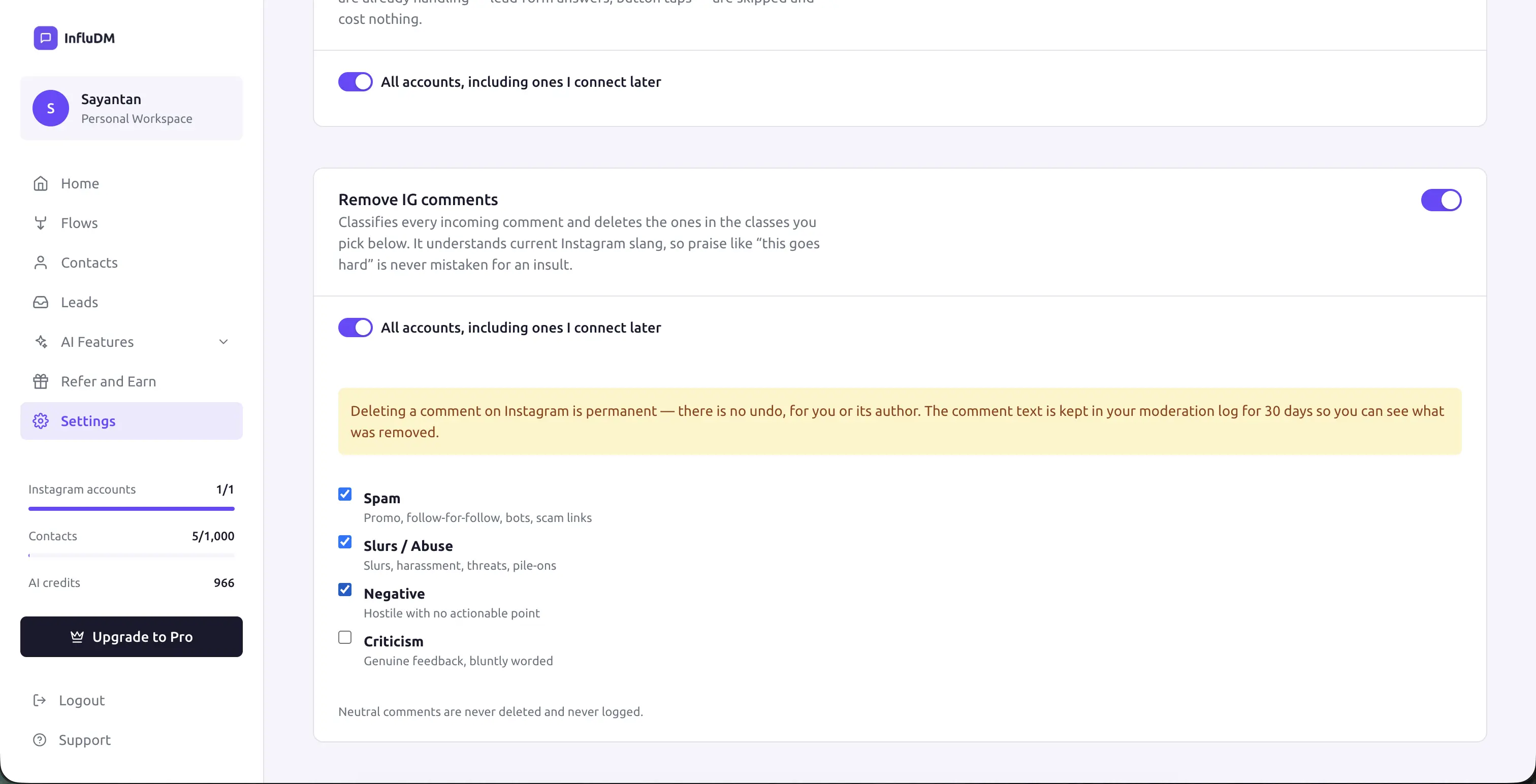 The account selector on a feature card — "All accounts, including ones I connect later" switched on, so a newly connected account is covered automatically.
What it costs
Reading one message or comment costs a credit or two, depending on how long it is. Credits are prepaid and can never go negative — when the balance runs out the AI simply stops reading and your flows carry on exactly as before.
AI Billing & Usage covers where credits come from, how to recharge, and where to see what you've spent.
Who can change what
Anyone in your workspace can view and export Brand Collabs and the moderation log — the same access they have to Leads.
Switching features on or off, choosing which accounts they cover, picking what gets deleted, buying credits and editing a collab request are admin actions. See Roles & Permissions.
How it fits with your flows
The AI features and your flows are independent. Flows react to triggers you define; the AI reads everything else. They never fight over the same message:
- A reply your flow is already handling — an answer to a lead form question, a tap on your opening message — is skipped entirely by Collab Detection. That's your own automation talking, not a brand, so it never reaches the AI and never costs you a credit.
- Comment Moderation runs on every incoming comment regardless of whether a flow also matched it, because a comment can be both spam and contain your keyword.
Next steps
- Collab Detection — never miss a brand deal again.
- Comment Moderation — keep your comment section clean.
- AI Billing & Usage — credits, recharging and usage history.
- How the AI Works — what it reads, what it stores, and what it never does.
Stuck on something? Start with the chat widget on this page — it answers most questions instantly. If you still need a hand, see Contact & Support.